
Google Gemini CLI: a terminal companion for AI coding work
Google Gemini CLI gives developers a terminal-based AI assistant for codebase questions, file-aware summaries, and workflow automation, while keeping the boundaries of cloud usage and privacy visible.
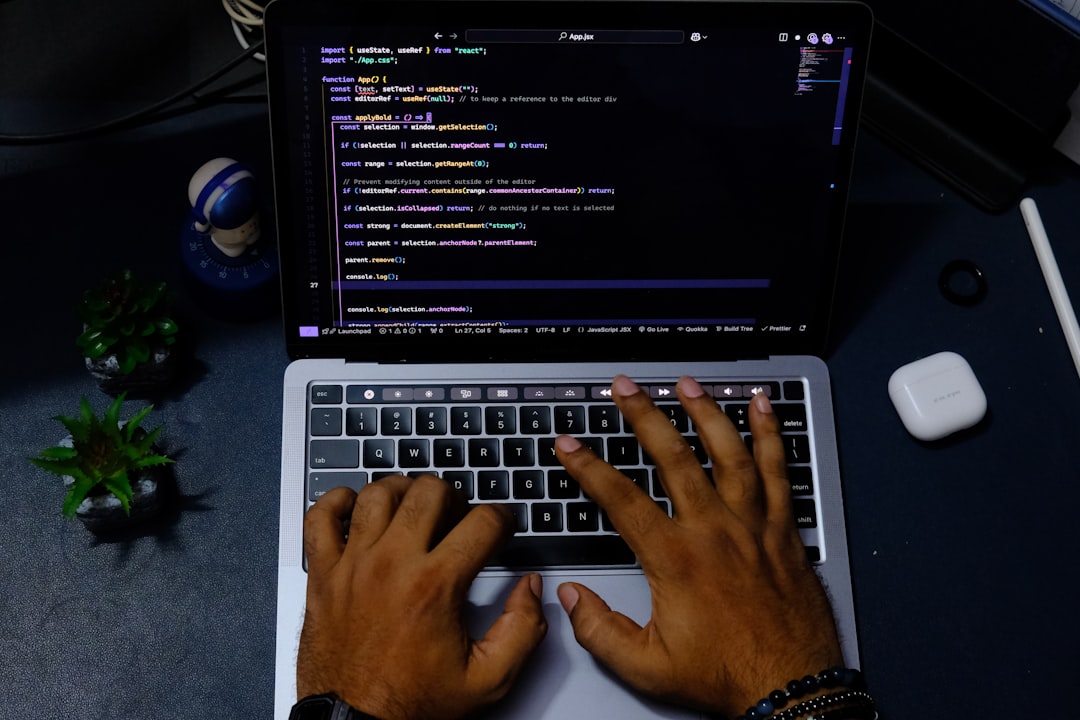
At the end of the day, you are not usually asking for a new editor or a shiny interface. You are asking for less context switching. For teams that move quickly in terminals, a terminal AI assistant can make that happen. Google Gemini CLI fits that gap. It helps you ask quick questions and review project context while staying in the same command line where your work already happens.
What Gemini CLI is
Google Gemini CLI is an open source terminal utility that links Gemini language models with local workflows. The tool is available from github.com/google-gemini/gemini-cli. In practical terms, it lets you run AI-assisted prompts, inspect file context, and get recommendations without jumping between many apps.
Who it is for and who it is not
This is most useful for developers, operators, and technical teams who already use command line tasks. If your team spends the day in a GUI and wants a visual-first app, it may not be your main choice. But if scripts, logs, and repository files dominate your routine, this type of tool can reduce friction fast.
How to get started
Setup starts from official docs. A common install command is:
npm install -g @google/gemini-cliThen run the gemini command in your terminal. The docs also describe Node.js and shell requirements. Authentication has multiple supported paths, from account based sign in to key-based and platform paths. Those choices are important because they affect both access controls and usage expectations.
Useful usable workflows
1) Understanding a project quickly
When you join a service late, the first hour often disappears into searching through folders and docs. A terminal assistant can act as a sounding board for architecture questions or a short summary pass across key files. The benefit is not replacing your judgment. The benefit is giving you a faster first response.
2) Drafting small plans and tests
Teams can use it to generate a starting checklist for a task, such as edge cases and quick test scenarios. If you treat this as a first draft only, it works best. You can then compare every suggestion with your own standards and run the tests you trust.
3) Working with logs and config
In operations, the terminal is where you inspect logs and configuration issues. With local context, Gemini CLI can help spot likely causes, propose next commands, and summarize findings in plain language. This is most valuable when someone is already near the problem, not replacing incident expertise.
Why teams like this type of tool
There are several real reasons:
- It keeps your flow in the terminal, no app switching at every step.
- It supports local context so suggestions are tied to files you already have on disk.
- It is open source, so teams can review behavior and update path choices with more transparency.
- It includes documented model and usage behavior instead of opaque defaults.
Limits and risk checks you should make
There are important tradeoffs. Your prompts and file snippets can involve proprietary material. You should have a policy for what can be shared, especially in shared or regulated projects. For many teams this means explicit allowlists, redaction habits, and a review step before sending larger contexts.
Another tradeoff is that outputs can be wrong or overly broad, especially when the prompt is vague. That is true of most AI helpers. The safe way is simple: run one command, review every recommendation, and execute only confirmed steps. This tool is helpful, not authoritative.
License, costs, and operational expectations
Gemini CLI is open source under Apache-2.0 according to the repository files. That helps with policy checks. The usage cost itself is tied to auth mode and any model usage path you choose. Teams should verify account level quotas, organization policy, and any cloud constraints before broad rollout.
Alternatives for comparison
Claude Code, OpenAI Codex CLI paths, and several IDE based coding assistants can also support terminal or coding workflows. Continue and other diff-first tools remain valid choices in different environments. If your team values terminal continuity, Gemini CLI is a strong option. If your team prefers UI-driven automation, another tool may sit better in day one workflows.
Recommendation
If your team is already shell-first and wants AI support without adding an extra app layer, Gemini CLI is worth a controlled trial. Start with one project, one use case, and a strict review checklist. If your process already depends on command line agility, this can be a useful, low-friction addition.
Final note
Try it with the same discipline you use for any production workflow: clear prompts, clear approvals, and clear exits. That approach keeps the tool useful without letting it outrun your engineering judgement.
How to pilot safely in a real team
Before you roll this to every machine, run a one week pilot with strict boundaries. Pick one repo, one pair of reviewers, and a fixed list of tasks the tool is allowed to assist with. Track what it saves versus what it slows down. This simple scorecard usually reveals whether adoption is real value or just novelty. The best teams keep a short ledger: prompt quality, review time, and bug catch rate. Once you have data from real work, the adoption decision becomes straightforward.
After that pilot, keep a short playbook with the commands you trust, the commands you forbid, and the approval pattern you require. A terminal AI tool is not dangerous because it is complex. It is dangerous only when it is used without a policy.